Hetzner Cloud Hourly Billing Module for WHMCS — Complete Installation & User Guide
Version: 1.5.0
Compatible with: WHMCS 8.x, 9.x | PHP 7.4+ | Hetzner Cloud API v1
Table of Contents
-
Introduction
-
System Requirements
-
Architecture Overview
-
Installation
-
Configuration
-
Setting Up Windows Templates
-
Setting Up Pricing
-
Cron Job Configuration
-
Admin Panel Walkthrough
-
Client Area Walkthrough
-
Advanced Features
-
Troubleshooting
-
Frequently Asked Questions
-
Security Best Practices
-
Changelog & Support
1. Introduction
1.1 What is this module?
The Hetzner Cloud Hourly Billing Module is a complete WHMCS addon + provisioning server module that lets you sell Hetzner Cloud VPS instances on an hourly or per-minute billing model. It integrates directly with the Hetzner Cloud API and gives your clients a modern, self-service control panel right inside the WHMCS client area.
1.2 Key Features
| Feature | Description |
|---|---|
| Hourly / Per-Minute Billing | Charge clients based on actual usage, calculated every 5 minutes via cron |
| Server Provisioning | Full automated deployment via Hetzner Cloud API |
| Windows Server Support | Deploy Windows 2019 / 2022 / 2025 from your own pre-built snapshots |
| Architecture Awareness | Automatic x86 / ARM64 detection with correct snapshot matching |
| RAM-based Restrictions | Only allow Windows on plans with sufficient RAM (configurable) |
| Real-time VNC Console | Built-in noVNC integration for browser-based console access |
| Credit-based Locking | Automatically suspend/restrict clients when balance falls below minimum |
| Full Server Management | Reboot, shutdown, power on, reset password, rebuild, and delete |
| Detailed History | Complete audit trail of all servers (active + deleted) |
| CSV Export | Export full usage history for accounting |
| Modern Client UI | Beautiful, responsive UI with multi-language support |
1.3 Who is this for?
-
Web hosting providers offering hourly-billed VPS services
-
Resellers on Hetzner Cloud infrastructure
-
Managed service providers looking for a "pay as you go" billing model
2. System Requirements
2.1 Server Requirements
| Component | Minimum | Recommended |
|---|---|---|
| WHMCS | 8.0 | 8.7+ or 9.x |
| PHP | 7.4 | 8.1 or 8.2 |
| MySQL / MariaDB | 5.7 / 10.3 | 8.0 / 10.5+ |
| cURL Extension | Enabled | Enabled |
| JSON Extension | Enabled | Enabled |
| ionCube Loader | Required (for billing file) | Latest version |
2.2 Hetzner Requirements
-
An active Hetzner Cloud account (https://console.hetzner.cloud)
-
A Project API Key with Read & Write permissions
-
At least one server type available in your project
2.3 WHMCS Requirements
-
A working Product set up as a "Server" type
-
Addon modules permissions (Administrator role must have "Configure Addon Modules" access)
3. Architecture Overview
The module consists of three layers:
┌─────────────────────────────────────────────────────────────┐
│                     WHMCS Installation                       │
├─────────────────────────────────────────────────────────────┤
│                                                              │
│  ┌──────────────────────────┐   ┌─────────────────────────┐ │
│  │   Addon Module           │   │   Server Module         │ │
│  │  /modules/addons/        │   │  /modules/servers/      │ │
│  │   hetzner_manager/       │   │   hetznercloud/         │ │
│  ├──────────────────────────┤   ├─────────────────────────┤ │
│  │ hetzner_manager.php      │   │ hetznercloud.php        │ │
│  │ - Admin UI               │   │ - Client Area           │ │
│  │ - Pricing Settings       │   │ - Server Management     │ │
│  │ - History Tracking       │   │ - API Integration       │ │
│  │ - License Validation     │   │ - VNC Console           │ │
│  │                          │   │                         │ │
│  │ assets/css/style.css     │   │ lib/ApiClient.php       │ │
│  │                          │   │ hetzner_billing.php     │ │
│  │                          │   │ (ionCube encrypted)     │ │
│  └──────────────────────────┘   └─────────────────────────┘ │
│                                                              │
└─────────────────────────────────────────────────────────────┘
                              │
                              ▼
                    ┌────────────────────┐
                    │  Hetzner Cloud API │
                    │  api.hetzner.cloud │
                    └────────────────────┘
3.1 Addon Module (hetzner_manager)
Handles administrative operations:
-
Manage per-plan pricing (setup fee, per-minute/hourly rate, deletion fee)
-
Set global configuration (min credit, email threshold, auto-terminate time)
-
View active servers and full history
-
Export CSV reports
-
License validation
3.2 Server Module (hetznercloud)
Handles client-facing operations:
-
Deploy new servers
-
Manage existing servers (reboot, shutdown, delete, VNC)
-
Rebuild servers with different OS
-
Access VNC console
-
View server details and specs
3.3 Billing Cron (hetzner_billing.php)
Runs every 5 minutes and:
-
Calculates per-minute charges for all active servers
-
Deducts from client credit balance
-
Sends email alerts when balance drops below threshold
-
Locks/terminates servers if balance stays below minimum
4. Installation
Step 1: Backup
Before touching anything, create a full backup of your WHMCS files and database using your hosting panel's backup tool or a manual snapshot.
Step 2: Upload Files
Upload the module folders to your WHMCS installation:
/path/to/whmcs/
├── modules/
│   ├── addons/
│   │   └── hetzner_manager/
│   │       ├── hetzner_manager.php
│   │       └── assets/
│   │           └── css/
│   │               └── style.css
│   └── servers/
│       └── hetznercloud/
│           ├── hetznercloud.php
│           ├── hetzner_billing.php
│           ├── lib/
│           │   └── ApiClient.php
│           └── templates/
│               └── css/
│                   ├── hetzner_style.css
│                   └── server_style.css
Step 3: Set File Permissions
chmod -R 755 /path/to/whmcs/modules/addons/hetzner_manager
chmod -R 755 /path/to/whmcs/modules/servers/hetznercloud
chmod 644 /path/to/whmcs/modules/servers/hetznercloud/hetzner_billing.php
chown -R www-data:www-data /path/to/whmcs/modules/addons/hetzner_manager
chown -R www-data:www-data /path/to/whmcs/modules/servers/hetznercloud
Replace
www-datawith your actual web server user (e.g.,apache,nginx,cpanel).
Step 4: Activate the Addon
-
Log in to WHMCS Admin
-
Navigate to System Settings → Addon Modules
-
Find Hetzner Cloud Hourly Billing Module in the list
-
Click Activate
-
Click Configure to set permissions (check all admin roles that should manage this module)
Upon activation, the module automatically creates its required database tables. No manual database setup is needed.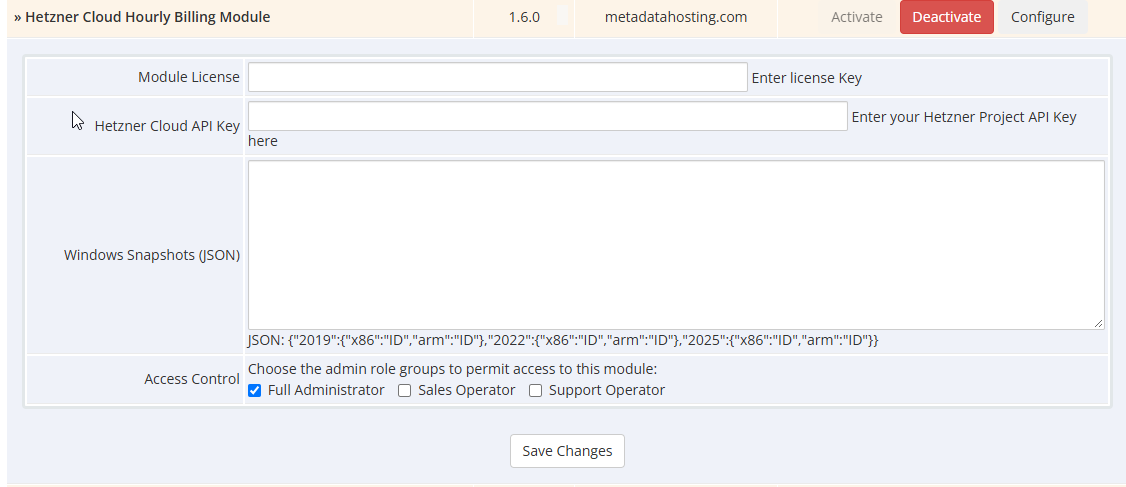
5. Configuration
5.1 Get Your Hetzner API Key
-
Log in to https://console.hetzner.cloud
-
Select your Project (or create one)
-
Go to Security → API Tokens
-
Click Generate API Token
-
Name: WHMCS Module
-
Permissions: Read & Write
-
-
Copy the token immediately — it will not be shown again
5.2 Configure the Addon
Navigate to Addons → Hetzner Cloud Hourly Billing Module → Addon Settings.
| Field | Value | Description |
|---|---|---|
| Module License | XXXX-XXXX-XXXX-XXXX |
Your license key from module.metadatahosting.com |
| Hetzner Cloud API Key | abcdef123456... |
Paste the API token from step 5.1 |
| Windows Snapshots (JSON) | See Section 6 | Optional — only if selling Windows |
| Enable Windows Deployment | yes / no |
Master switch for Windows plans |
| Windows Server 2019 | yes / no |
Show 2019 to clients |
| Windows Server 2022 | yes / no |
Show 2022 to clients |
| Windows Server 2025 | yes / no |
Show 2025 to clients |
Click Save Changes.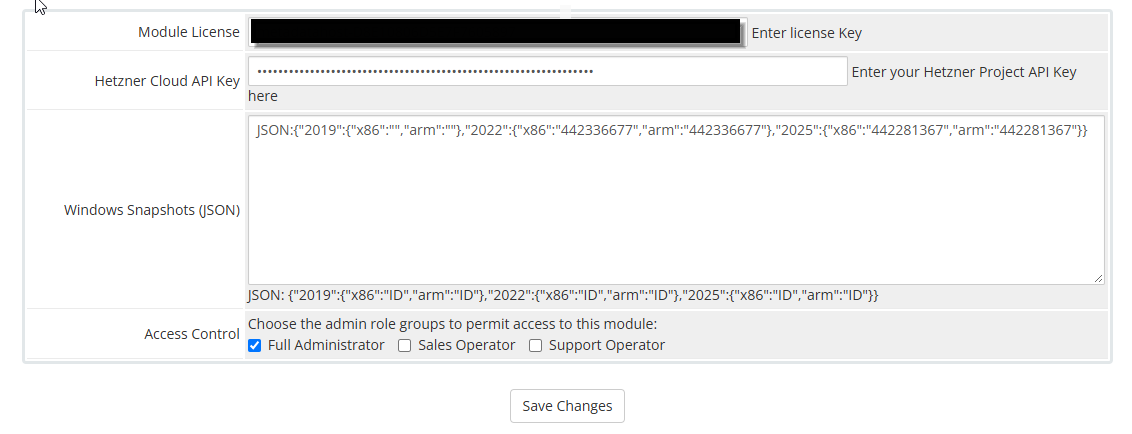
5.3 Create a WHMCS Product
-
Go to System Settings → Products/Services → Products/Services
-
Click Create a New Product
-
Fill in:
-
Product Type:
Server -
Product Group: (your choice, e.g., "Cloud VPS")
-
Product Name: e.g., "Hetzner Cloud — Pay As You Go"
-
-
Click Continue

-
Under the Module Settings tab:
-
Module:
HetznerCloud
-
⚠️ Important: The product's own pricing in WHMCS is separate from this module's billing. The addon billing uses the client's credit balance, not invoices.
5.4 Add Funds to Client Accounts
Because billing is credit-based, clients must have sufficient balance. They can:
-
Add funds manually via Client Area → Add Funds
-
Receive admin adjustments
-
Get credit from invoices paid via WHMCS
Set the minimum required balance in the module settings (see Section 9).
6. Setting Up Windows Templates
The module supports custom Windows snapshots that you create in your Hetzner Cloud project. You must build these templates yourself.
6.1 Why Snapshots?
Hetzner does not provide ready-made Windows images. You need to:
-
Deploy a temporary server
-
Install Windows manually (via ISO or another method)
-
Configure everything (drivers, updates, RDP)
-
Create a snapshot
-
Use the snapshot ID in the module
6.2 How to Create a Windows Snapshot
-
In Hetzner Cloud Console, create a temporary server (e.g., CX32)
-
Install Windows Server 2022 via the ISO you upload or use a rescue mode
-
Configure:
-
Administrator password (module default:
@@@.123456best— change this!) -
RDP enabled (port 3389)
-
Firewall rules
-
Any pre-installed software
-
-
Shut down the server
-
In Hetzner Console: Server → Snapshots → Create Snapshot
-
Note the Snapshot ID (a long number like
442281367)
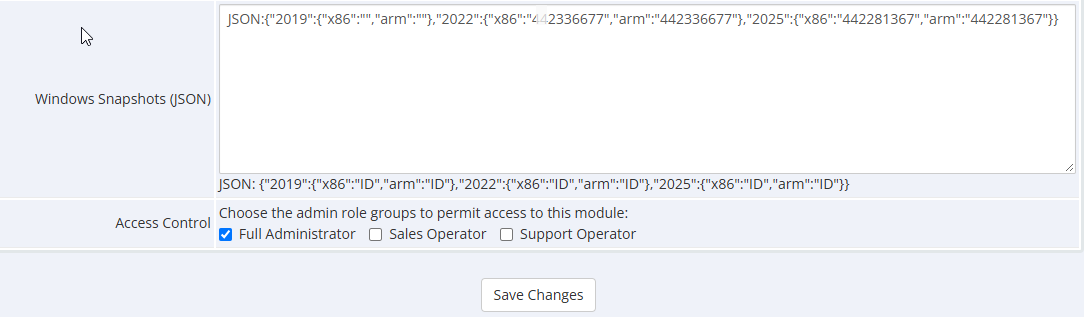
6.3 Configure the Snapshot JSON
Go to the addon settings and paste this JSON (replace with your own IDs):
{
  "2019": {
    "x86": "123456789",
    "arm": ""
  },
  "2022": {
    "x86": "442281367",
    "arm": ""
  },
  "2025": {
    "x86": "555555555",
    "arm": ""
  }
}
Rules:
-
Use straight quotes (
") — not smart quotes (") -
Only include architectures you actually support
-
Leave
armempty if you don't have ARM snapshots -
Snapshot IDs must be numeric only
6.4 RAM Requirement
By default, the module requires at least 4 GB RAM for Windows deployment. This is enforced both client-side and server-side. You can change this in the code:
function hetzner_get_windows_min_ram() {
    return 4; // Change this value
}
6.5 Architecture Matching
The module automatically:
-
Detects whether a plan is x86 or ARM (from the plan name prefix)
-
Selects the correct snapshot for the current server architecture
-
Hides Windows options on incompatible plans
7. Setting Up Pricing
7.1 Access Pricing Settings
Navigate to Addons → Hetzner Cloud Hourly Billing Module → Pricing Settings.
7.2 Global Settings
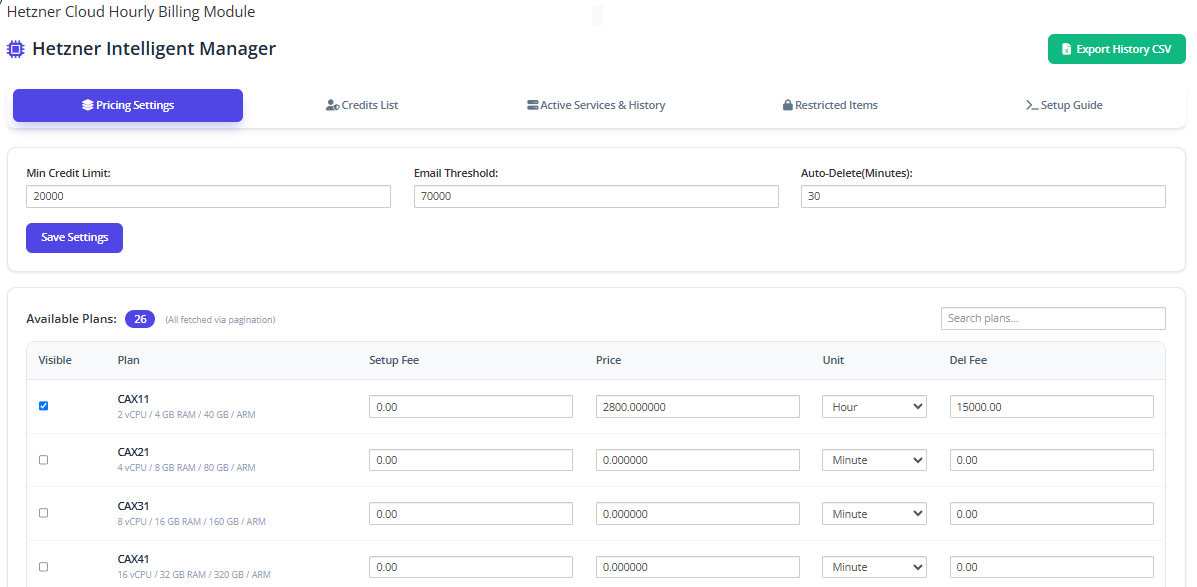
| Field | Description |
|---|---|
| Min Credit Limit | Client account balance below this value = locked (cannot deploy/manage) |
| Email Threshold | Send warning email when balance drops below this |
| Auto-Delete (Minutes) | Auto-terminate servers after N minutes of insufficient balance |
7.3 Per-Plan Pricing
The table shows all available Hetzner server types. For each plan, configure:
| Field | Description |
|---|---|
| Visible | Show this plan to clients (unchecked = hidden) |
| Setup Fee | One-time charge on server creation |
| Price | Rate per minute or per hour |
| Unit | Minute or Hour |
| Deletion Fee | Charge when client deletes the server |
Example:
-
CX22 plan:
-
Setup Fee:
0.50 -
Price:
0.008 -
Unit:
Hour -
Deletion Fee:
0 -
Result: **$0.008 per hour** (~$5.76/month)
-
7.4 How Billing Works
Billing runs every 5 minutes via the cron job. For each active server:
-
Calculate elapsed time since last billing cycle
-
Multiply by the plan's per-minute rate
-
Deduct from client credit
-
Record the transaction in the client's credit history
Example calculation:
-
Plan:
cx22at$0.008/hour -
Per-minute rate:
$0.008 / 60 = $0.00013333 -
Cron runs every 5 minutes
-
Charge per cycle:
$0.00013333 × 5 = $0.00066667 -
Monthly cost: ~$5.76 (assuming 30 days continuous use)
8. Cron Job Configuration
8.1 Access Setup Guide
In the admin panel, navigate to Setup Guide tab. You'll see two cron job options.
Advantages:
-
No PHP path issues
-
Works with any PHP version configured for web
-
Simplest to set up
8.3 Method 2: Direct PHP
*/5 * * * * /usr/local/bin/php -q *******************/hetznercloud/hetzner_billing.php > /dev/null 2>&1
Requirements:
-
Correct PHP binary path
-
ionCube loader enabled for CLI PHP
-
Proper file permissions
8.4 Verify Cron is Running
Check the system logs from your server's terminal, or observe the module's History tab — timestamps should update every 5 minutes when sync is happening.
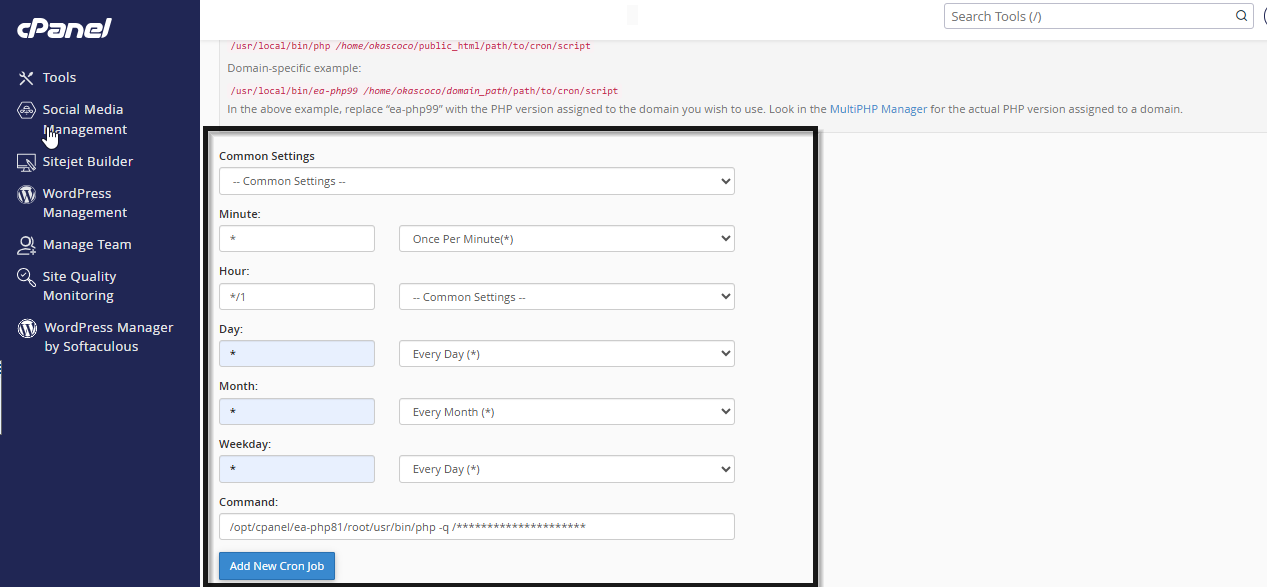
8.5 Add Cron via cPanel
-
Log in to cPanel
-
Go to Advanced → Cron Jobs
-
Add new cron job:
-
Common Settings: Every 5 minutes (
*/5 * * * *) -
Command: Paste the CURL command
-
-
Save
8.6 Add Cron via DirectAdmin
-
Log in to DirectAdmin
-
Go to Advanced Features → Cron Jobs
-
Add new entry with the command above
9. Admin Panel Walkthrough
Access via Addons → Hetzner Cloud Hourly Billing Module.
9.1 Pricing Settings Tab
Configure global limits and per-plan pricing (see Section 7).
Features:
-
Search plans (for large catalogs)
-
Bulk save with single button
-
Shows all plans with specs (vCPU / RAM / Disk / Architecture)
9.2 Credits List Tab
View all WHMCS clients with their current balance.
Use Cases:
-
Audit credit balances
-
Spot clients about to be locked
-
Search by client name
9.3 Active Services & History Tab
Shows grouped by client:
-
Client name
-
Total services count
-
Click "Details" to expand:
-
Each server's name, IP, plan, location
-
Status (running / off / deleted)
-
Total active minutes (calculated)
-
Auto-sync on page load:
The module calls the Hetzner API every time this tab is loaded to sync current server status. Deleted servers are marked automatically.
9.4 Restricted Items Tab
Shows clients/servers currently locked due to insufficient balance. Useful for support tickets.
9.5 Setup Guide Tab
Shows:
-
Cron job commands (CURL + PHP methods)
-
Security checklist
-
Recommended CHMOD values
9.6 CSV Export
Click Export History CSV in the top-right corner. Downloads a CSV with:
Customer,Server,IP,Plan,Location,Date,Status
Use this for accounting, tax reports, or client audits.
10. Client Area Walkthrough
10.1 Accessing the Client Panel
Clients access it via Client Area → Your Products/Services → [Hetzner Product] → Manage.
10.2 Main Dashboard
The top of the page shows:
-
Account Balance (large, prominent)
-
Minimum Required balance
-
Add Funds button (links to WHMCS add funds page)
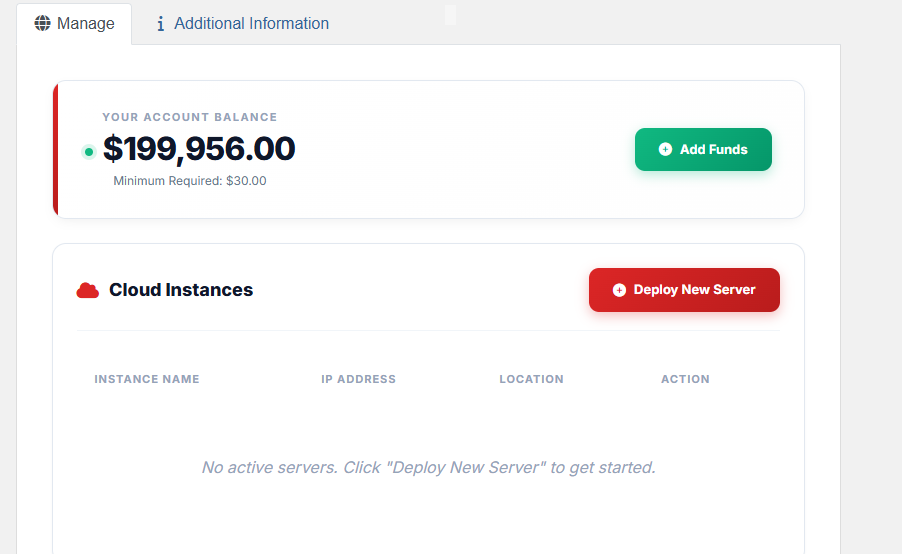
10.3 Server List
A table listing all of the client's servers:
| Column | Description |
|---|---|
| Instance Name | Server name + plan + architecture badge |
| IP Address | Public IPv4 |
| Location | Datacenter city |
| Action | Quick VNC button + Manage link |
If no servers exist, a friendly empty state appears.
10.4 Deploying a New Server
Click Deploy New Server to open the deployment modal.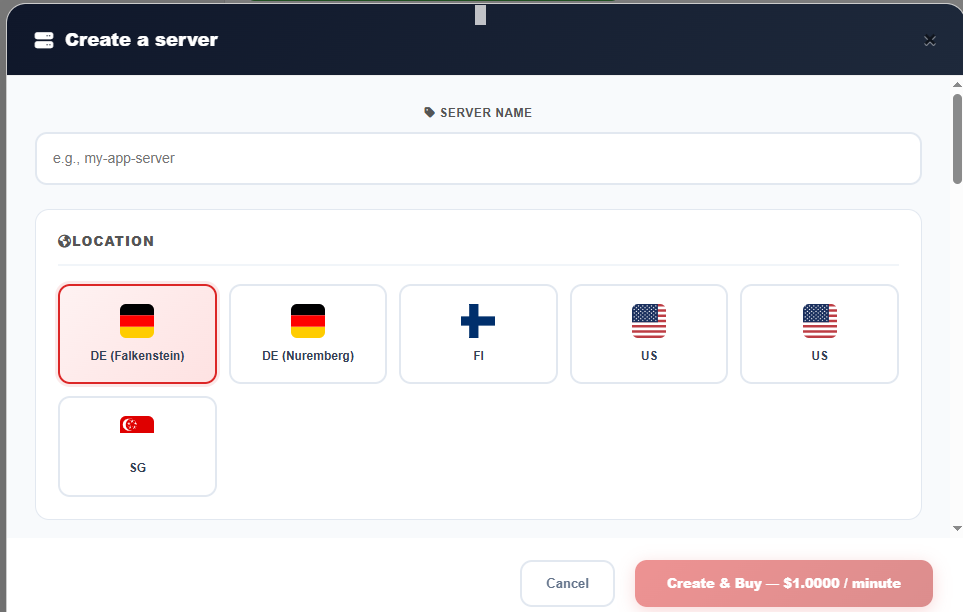
Step 1: Server Name
Free text — a friendly name for the server (e.g., my-app-01).
Step 2: Location
Grid of cards with country flags:
-
Germany (Nuremberg)
-
Germany (Falkenstein)
-
Finland (Helsinki)
-
USA (Ashburn, VA / Hillsboro, OR)
-
Singapore
Step 3: Type
-
Shared Resources — for CX/CPX plans
-
Dedicated Resources — for CCX plans
Then choose subcategory:
-
Cost-Optimized — CX / CAX (older hardware)
-
Regular Performance — CPX (newer hardware)
-
General Purpose — CCX (dedicated vCPU)
Step 4: Architecture
-
x86 (Intel/AMD) — compatible with most plans
-
Arm64 (Ampere) — for CAX plans
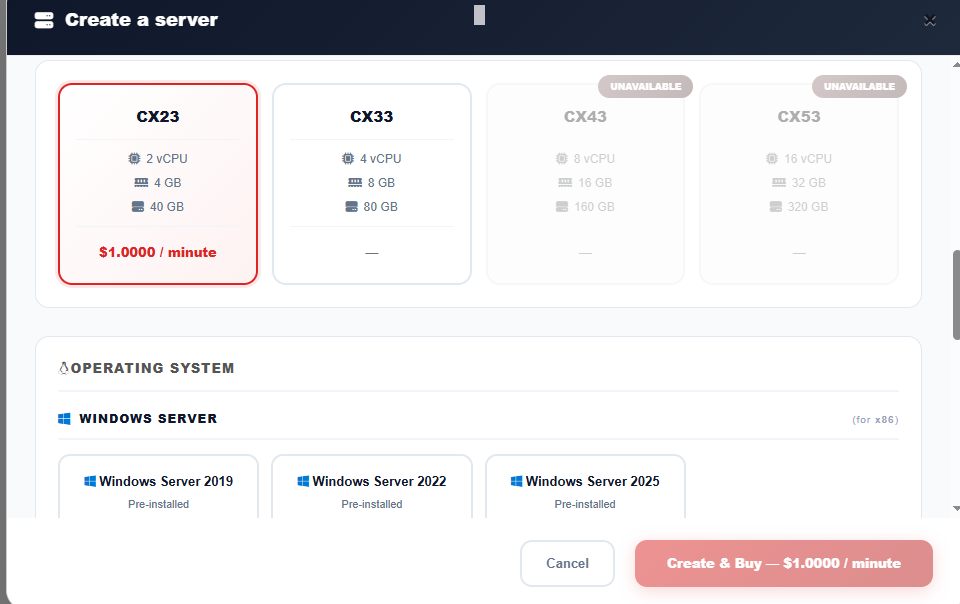
Step 5: Plan
Cards show available plans for the selected type/subtype/architecture:
-
Plan name (CX22, CPX31, etc.)
-
Specs (vCPU / RAM / Disk)
-
Price per hour (or per minute)
Disabled plans show "Unavailable" badge.
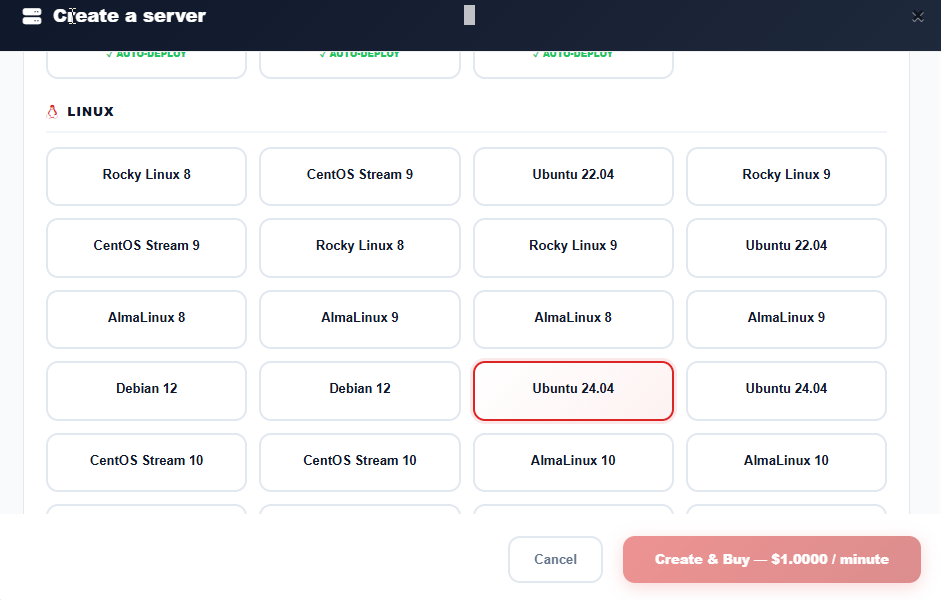
Step 6: Operating System
Windows Server group (only shown if:
-
Windows is enabled in admin settings
-
Selected plan has ≥ 4 GB RAM
-
Snapshot is configured for the plan's architecture)
Linux group:
-
Ubuntu 22.04, 24.04
-
Debian 11, 12
-
CentOS Stream, Rocky Linux, AlmaLinux
-
Fedora, openSUSE
-
Alpine Linux
-
Others (as available in Hetzner's catalog)
Step 7: Deploy
Click Create & Buy — $X.XX / hour.
The button shows the exact price. On success:
-
Redirects to the server details page
-
Server appears in the list within seconds
10.5 Managing a Server
Click Manage on any server row.
Server Details Page
Top section shows:
-
Server name + status badge
-
Public IP
-
Datacenter description
Specs grid:
-
CPU cores
-
RAM
-
Disk
-
Bandwidth
System info:
-
Plan name
-
OS description
-
IPv6 address
Control Buttons
| Button | Action |
|---|---|
| Reboot | Soft reset (graceful) |
| Shutdown | Graceful power off |
| Power On | Boot server |
| Reset Password | Generate new root password |
| Reinstall Windows | (Windows only) Rebuild from snapshot |
| VNC Console | Open noVNC in new tab |
| Delete | Permanently destroy server |
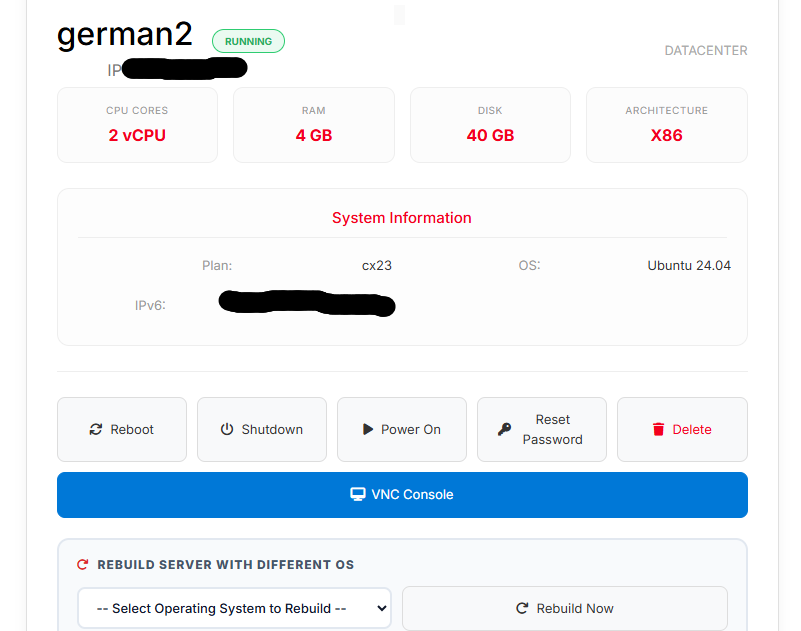
Rebuild Section
Bottom of the page: Rebuild Server with Different OS
-
Dropdown with available OS options:
-
Windows (only if RAM ≥ 4 GB)
-
Linux (all available)
-
-
Click Rebuild Now to wipe and reinstall
⚠️ Warning: Rebuilding will destroy all data on the server. The confirmation dialog is explicit.
10.6 VNC Console
Click VNC Console → opens a new browser tab with:
-
Full-screen noVNC client
-
Connected to the server's console
-
Auto-reconnect enabled
-
Session timer (expires after ~5 minutes of inactivity)
-
Fullscreen / Refresh / Close buttons
Requirements:
-
Server must be running or powered on
-
Browser must support WebSocket
10.7 Windows Server Details
If the server is Windows, an additional panel appears:
-
Windows Server XXXX (ARCH) Ready header
-
IP, username (Administrator), architecture
-
Default Administrator Password:
@@@.123456best(changeable) -
Reinstall Windows button (same version)
-
Open VNC Console button
10.8 Credits and Locking
When balance falls below the minimum required:
-
Client panel is locked
-
Deploy button hidden
-
Manage buttons disabled
-
All server actions (except viewing) disabled
A red banner explains the situation and offers Add Funds.
11. Advanced Features
11.1 Multi-Architecture Support
The module automatically detects server architecture from the Hetzner API. Snapshots are matched by architecture field:
-
x86→ x86_64 snapshots -
arm/arm64→ ARM64 snapshots
Rebuild options are filtered to show only compatible images.
11.2 RAM-based Windows Restrictions
Windows is only offered on plans with RAM ≥ configured minimum (default: 4 GB). This is enforced at three layers:
-
UI: Windows cards hidden when plan RAM is insufficient
-
Client validation: Before form submission
-
Server-side: Re-validated in PHP before calling Hetzner API
11.3 Cache System
To reduce Hetzner API load, the module caches:
| Cache Key | TTL | Content |
|---|---|---|
HetznerCache_locations |
10 min | Datacenter locations |
HetznerCache_plans |
10 min | Server types |
HetznerCache_images |
30 min | OS images |
The cache refreshes automatically on expiry. If you need an immediate refresh (for example, after adding a new plan in Hetzner), simply wait for the TTL to expire or use the admin Save Settings action which triggers cache re-fetch.
11.4 Session-based VNC
VNC sessions are:
-
Cached in PHP session for 290 seconds
-
Automatically renewed on expiry
-
Owner-verified (only the server's owner can access)
11.5 Server History Tracking
Every cron run and admin page load syncs server state into the module's history. Fields tracked:
-
created_at— Hetzner API server creation time -
deleted_at— when it disappeared from API -
recorded_at— last sync time
This gives you a complete audit trail even for deleted servers.
11.6 Pricing by Billing Type
You can choose per-minute or per-hour display pricing. Both store the same underlying rate:
-
billing_type = 'hourly'→ Price is per hour -
billing_type = 'minute'→ Price is per minute (displayed as-is)
The billing cron always calculates per-minute internally.
12. Troubleshooting
12.1 Module Shows "License Invalid"
Causes:
-
License expired or not entered
-
Server domain/IP doesn't match license
-
Network cannot reach
metadatahosting.com
Solutions:
-
Verify license key is correct
-
Check firewall allows outgoing HTTPS
-
Contact support if license is correct
12.2 "API Key is Empty" or 401 Errors
Causes:
-
Hetzner API key not configured
- <p class="ds-markdown-para